> ## Documentation Index
> Fetch the complete documentation index at: https://docs.devinenterprise.com/llms.txt
> Use this file to discover all available pages before exploring further.
# Slack
> Chat and collaborate with Devin directly in your company Slack
Tag **@Devin** in Slack as soon as bugs, feature requests, and questions come in. Devin responds in-thread with updates and questions when it's tagged.
## Get started
### Installation
1. Go to [Settings > Connections > Slack](https://app.devin.ai/settings/connections/slack)
2. Click "Connect"
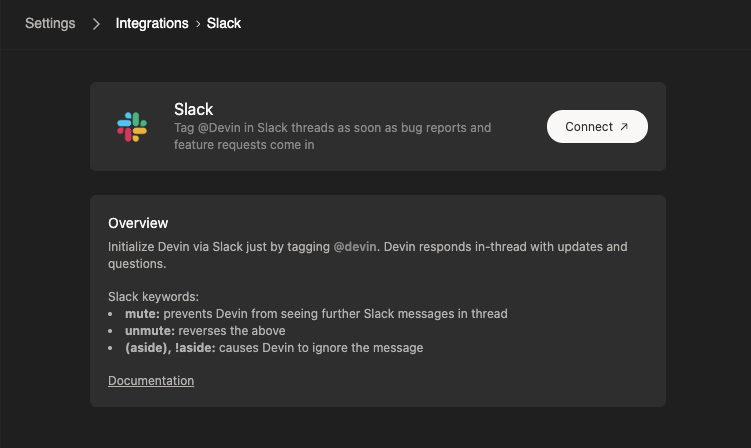 3. You’ll be prompted to install the Devin app for Slack in your workspace
4. Make sure to link your individual user. All users in your organization will need to complete this step to use Devin.
3. You’ll be prompted to install the Devin app for Slack in your workspace
4. Make sure to link your individual user. All users in your organization will need to complete this step to use Devin.
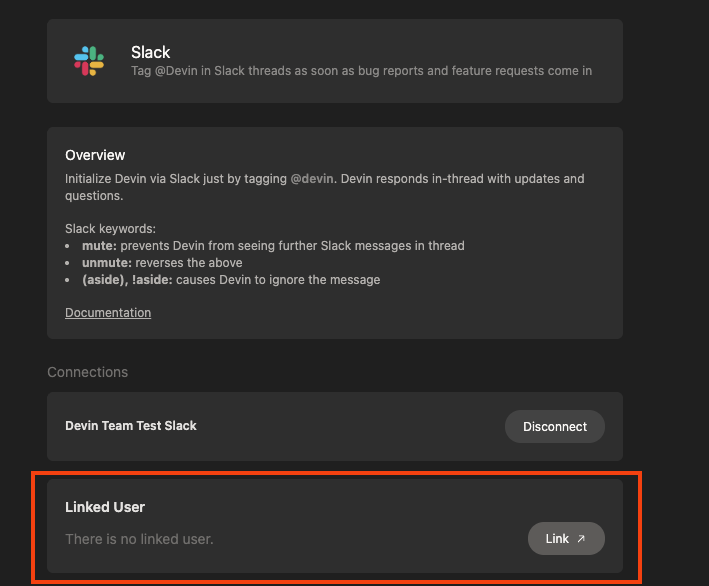 5. Tag @Devin in Slack to start a session
> Note: If your user account is not properly connecting, ensure that your Slack email is the same as your email in [https://app.devin.ai/settings](https://app.devin.ai/settings). If not, please authenticate the correct email on Slack.
### How to use Devin from Slack
Once you've installed the Devin integration for Slack, simply trigger Devin with @Devin in any channel. You may include attachments to your message.
5. Tag @Devin in Slack to start a session
> Note: If your user account is not properly connecting, ensure that your Slack email is the same as your email in [https://app.devin.ai/settings](https://app.devin.ai/settings). If not, please authenticate the correct email on Slack.
### How to use Devin from Slack
Once you've installed the Devin integration for Slack, simply trigger Devin with @Devin in any channel. You may include attachments to your message.
 Devin will respond in-thread to your session. Now, you can communicate back and forth as you would in the regular chat interface.
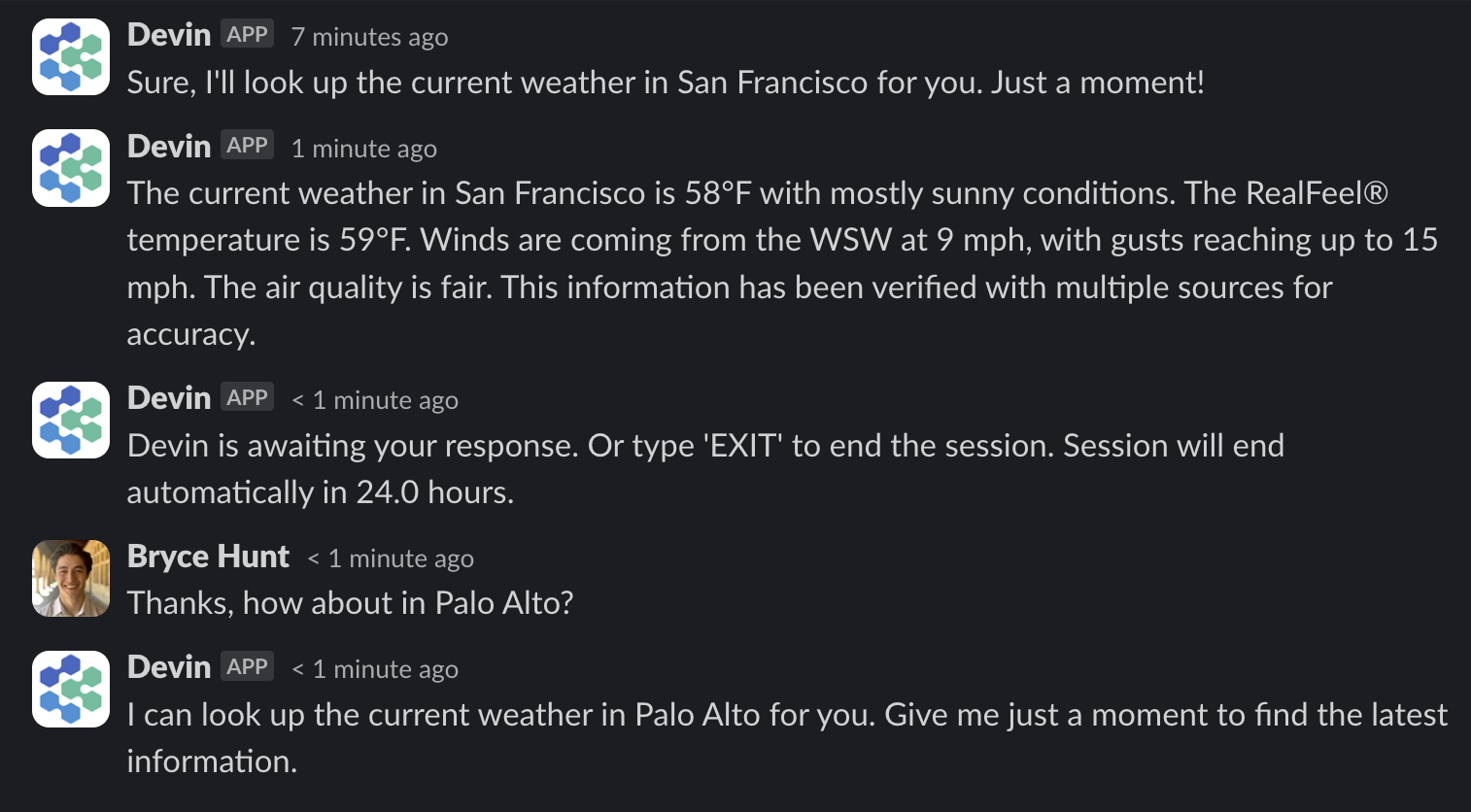 *Note that Devin may make mistakes. Please double-check responses.*
### Inline Slack Keywords & Functions
| Keyword | Function |
| --------------------------- | -------------------------------------------------------------------------------------------------------------------------------------------- |
| `!ask` | begin your message with !ask to get a quick codebase answer without starting a full agent |
| `!deep` | get a deeper research answer using advanced search |
| `mute`, `@Devin mute` | prevents Devin from seeing further Slack messages in thread. Natural phrasings also work (e.g. "be quiet", "stop responding in this thread") |
| `unmute`, `@Devin unmute` | reverses the above (also "start responding again") |
| `(aside)`, `!aside` | causes Devin to ignore the message (useful for commenting on Devin's run directly in-thread) |
| `sleep` | puts Devin to sleep; to wake Devin up, send any message in the thread |
| `archive`, `@Devin archive` | puts Devin to sleep + archives the session |
| `EXIT` | ends the session |
| `!dana` | starts a [Data Analyst (Dana)](/work-with-devin/data-analyst) session for database queries, data analysis, and visualizations |
| `!fast` | begin your message with !fast to start the session in Fast Mode for quicker responses on simpler tasks |
| `!ultra` | begin your message with !ultra to start the session in Ultra Mode for the most complex tasks |
| `!lite` | begin your message with !lite to start the session in Lite Mode |
| `!fusion` | begin your message with !fusion to start the session in Fusion Mode |
| `!swe` | begin your message with !swe to start the session on SWE-1.7 |
| `!normal` | begin your message with !normal to switch an active session back to the default Devin mode |
| `!new` | force the session to start in a new thread instead of replying in the current one |
| `!channel #channel-name` | post the session's reply thread in a different channel (Devin must already be in it) |
| `!windows` | run the new session on a Windows VM (requires the Windows entitlement for your organization) |
| `!data` | alias for `!dana` |
| `!discovery` | only valid right after `!dana` / `!data` — catalogs the databases and schemas reachable through your connected MCP integrations |
| `unsync`, `!unsync` | stop syncing the session to the Slack thread (see [Sync sessions with Slack threads](#sync-sessions-with-slack-threads)) |
| `![macro_name]` | Attach a playbook to a Session by referencing its Macro name |
Bang commands (`!fast`, `!lite`, `!ultra`, `!fusion`, `!swe`, `!normal`, `!new`, `!channel`, `!windows`, `!dana`) are recognized anywhere in your message, not just at the beginning — `@Devin fix the bug !ultra !new` works the same as `@Devin !ultra !new fix the bug`. They can be stacked in any order, and the keywords themselves are stripped from the prompt Devin receives. A bang command inside an inline or fenced code span is treated as literal text. Sending a mode keyword in an active Devin thread switches that session's mode mid-session.
### Slash commands
| Command | What it does |
| ---------------------------- | -------------------------------------------------------------------------------------- |
| `/ask-devin [your question]` | Quick codebase answer, without starting a full session. Devin replies in a new thread. |
| `/dana [your data question]` | Starts a [Dana](/work-with-devin/data-analyst) data-analysis session. |
Run either command with no arguments (or with `help`) to get usage instructions back privately.
### Message shortcuts
Right-click (or use the ⋮ overflow menu on) any Slack message to act on it without retyping it:
* **Ask Devin about this** — uses the message as the question for a quick codebase answer, same as `/ask-devin`.
* **Create a new session** — opens a modal pre-filled with the message text, where you pick the channel to post the session in, optionally attach a [playbook](/product-guides/using-playbooks), and edit the prompt before submitting.
### Sync sessions with Slack threads
Sessions can sync bidirectionally with a Slack thread: messages you send in the webapp appear in the thread, and replies in the thread reach Devin. This means you can start a session anywhere and keep your team in the loop.
* Use the Slack toggle in the session composer to turn sync on or off for that session. The icon is colored when synced and greyed out when not.
* The first time you sync to a channel, Devin offers to make it your default so new sessions sync there automatically.
* Send `unsync` (or `!unsync`) in a synced thread to immediately stop syncing that session. Toggle sync back on in the webapp to resume.
A couple of related behaviors:
* Mentioning `@Devin` in the thread of an archived session unarchives it so you can continue the conversation.
* When Devin suggests an [environment configuration](/onboard-devin/environment/blueprint-reference) change, the Slack message includes the proposed diff and an **Apply** button so you can accept it without leaving Slack.
### Automations triggered from Slack
[Automations](/product-guides/automations) can be triggered by Slack activity — for example a reaction added to a message, or Devin monitoring a channel and jumping in when it can help — and can post run results back to a channel you designate. See the [Automations guide](/product-guides/automations) for setup.
### Turn on Slack Notifications
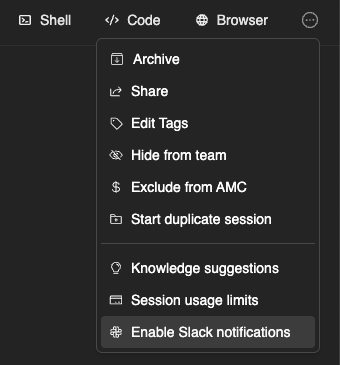
You can enable Slack notifications for specific runs and Devin will privately message you whenever there’s a status update. To do so, simply click "Enable Slack notifications" in the menu at the top of any run.
*Note that Devin may make mistakes. Please double-check responses.*
### Inline Slack Keywords & Functions
| Keyword | Function |
| --------------------------- | -------------------------------------------------------------------------------------------------------------------------------------------- |
| `!ask` | begin your message with !ask to get a quick codebase answer without starting a full agent |
| `!deep` | get a deeper research answer using advanced search |
| `mute`, `@Devin mute` | prevents Devin from seeing further Slack messages in thread. Natural phrasings also work (e.g. "be quiet", "stop responding in this thread") |
| `unmute`, `@Devin unmute` | reverses the above (also "start responding again") |
| `(aside)`, `!aside` | causes Devin to ignore the message (useful for commenting on Devin's run directly in-thread) |
| `sleep` | puts Devin to sleep; to wake Devin up, send any message in the thread |
| `archive`, `@Devin archive` | puts Devin to sleep + archives the session |
| `EXIT` | ends the session |
| `!dana` | starts a [Data Analyst (Dana)](/work-with-devin/data-analyst) session for database queries, data analysis, and visualizations |
| `!fast` | begin your message with !fast to start the session in Fast Mode for quicker responses on simpler tasks |
| `!ultra` | begin your message with !ultra to start the session in Ultra Mode for the most complex tasks |
| `!lite` | begin your message with !lite to start the session in Lite Mode |
| `!fusion` | begin your message with !fusion to start the session in Fusion Mode |
| `!swe` | begin your message with !swe to start the session on SWE-1.7 |
| `!normal` | begin your message with !normal to switch an active session back to the default Devin mode |
| `!new` | force the session to start in a new thread instead of replying in the current one |
| `!channel #channel-name` | post the session's reply thread in a different channel (Devin must already be in it) |
| `!windows` | run the new session on a Windows VM (requires the Windows entitlement for your organization) |
| `!data` | alias for `!dana` |
| `!discovery` | only valid right after `!dana` / `!data` — catalogs the databases and schemas reachable through your connected MCP integrations |
| `unsync`, `!unsync` | stop syncing the session to the Slack thread (see [Sync sessions with Slack threads](#sync-sessions-with-slack-threads)) |
| `![macro_name]` | Attach a playbook to a Session by referencing its Macro name |
Bang commands (`!fast`, `!lite`, `!ultra`, `!fusion`, `!swe`, `!normal`, `!new`, `!channel`, `!windows`, `!dana`) are recognized anywhere in your message, not just at the beginning — `@Devin fix the bug !ultra !new` works the same as `@Devin !ultra !new fix the bug`. They can be stacked in any order, and the keywords themselves are stripped from the prompt Devin receives. A bang command inside an inline or fenced code span is treated as literal text. Sending a mode keyword in an active Devin thread switches that session's mode mid-session.
### Slash commands
| Command | What it does |
| ---------------------------- | -------------------------------------------------------------------------------------- |
| `/ask-devin [your question]` | Quick codebase answer, without starting a full session. Devin replies in a new thread. |
| `/dana [your data question]` | Starts a [Dana](/work-with-devin/data-analyst) data-analysis session. |
Run either command with no arguments (or with `help`) to get usage instructions back privately.
### Message shortcuts
Right-click (or use the ⋮ overflow menu on) any Slack message to act on it without retyping it:
* **Ask Devin about this** — uses the message as the question for a quick codebase answer, same as `/ask-devin`.
* **Create a new session** — opens a modal pre-filled with the message text, where you pick the channel to post the session in, optionally attach a [playbook](/product-guides/using-playbooks), and edit the prompt before submitting.
### Sync sessions with Slack threads
Sessions can sync bidirectionally with a Slack thread: messages you send in the webapp appear in the thread, and replies in the thread reach Devin. This means you can start a session anywhere and keep your team in the loop.
* Use the Slack toggle in the session composer to turn sync on or off for that session. The icon is colored when synced and greyed out when not.
* The first time you sync to a channel, Devin offers to make it your default so new sessions sync there automatically.
* Send `unsync` (or `!unsync`) in a synced thread to immediately stop syncing that session. Toggle sync back on in the webapp to resume.
A couple of related behaviors:
* Mentioning `@Devin` in the thread of an archived session unarchives it so you can continue the conversation.
* When Devin suggests an [environment configuration](/onboard-devin/environment/blueprint-reference) change, the Slack message includes the proposed diff and an **Apply** button so you can accept it without leaving Slack.
### Automations triggered from Slack
[Automations](/product-guides/automations) can be triggered by Slack activity — for example a reaction added to a message, or Devin monitoring a channel and jumping in when it can help — and can post run results back to a channel you designate. See the [Automations guide](/product-guides/automations) for setup.
### Turn on Slack Notifications
You can enable Slack notifications for specific runs and Devin will privately message you whenever there’s a status update. To do so, simply click "Enable Slack notifications" in the menu at the top of any run.
 ### Dedicated Devin channel
Set up a **#devin-runs** channel (or similar) to keep all Devin conversations in one place. This helps your team collaborate on Devin runs together and draw inspiration for different use cases from each other.
### Dedicated Devin channel
Set up a **#devin-runs** channel (or similar) to keep all Devin conversations in one place. This helps your team collaborate on Devin runs together and draw inspiration for different use cases from each other.
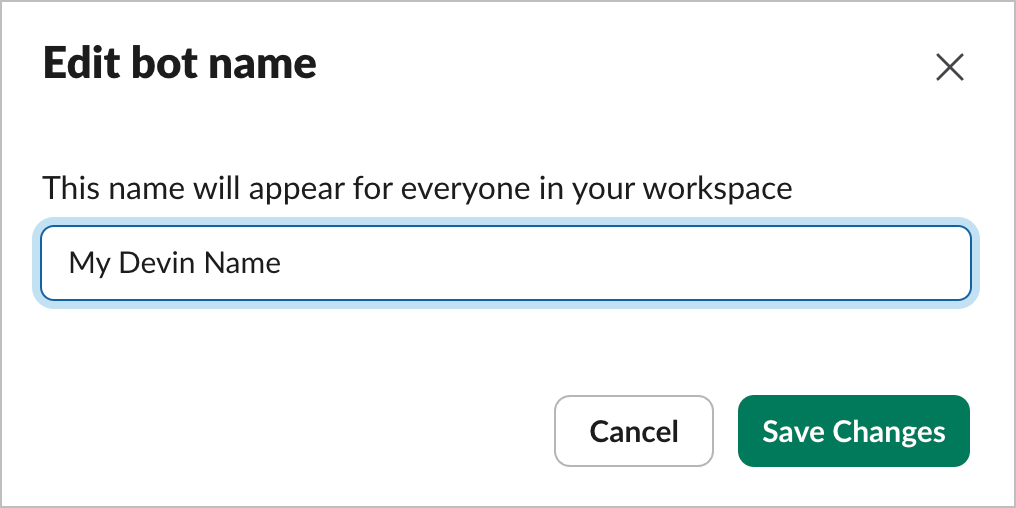
 ### How to Rename Devin
You may change Devin's name in your Slack workspace by going to your Slack Workspace Admin panel -> Configure apps -> Installed Apps -> Devin. Then click on App Details, and go to the Configuration tab of that page. If you scroll down you will find a section called 'Bot User' where you may change Devin's name.
### How to Rename Devin
You may change Devin's name in your Slack workspace by going to your Slack Workspace Admin panel -> Configure apps -> Installed Apps -> Devin. Then click on App Details, and go to the Configuration tab of that page. If you scroll down you will find a section called 'Bot User' where you may change Devin's name.
 ### Pricing
If you don't yet have a Devin account, you can learn more about pricing and plans [here](https://devin.ai/pricing).
The AI assistant sidebar experience (app container) requires a paid Slack plan. All other Devin features — @mentions in channels and threads, `/ask-devin`, `/dana`, and message shortcuts — work on any Slack plan, including free workspaces.
### Privacy
Our privacy policy is available [here](https://cognition.com/privacy-policy).
### Permissions Details
| Permission | Description | Rationale |
| ---------------------------------------------------- | --------------------------------------------------------------------------------------------------- | ---------------------------------------------------------------------------------------------------------------------------------------------------------- |
| `app_mentions:read` | View messages that directly mention @Devin | Devin is summoned by @mention, so it has to receive mention events |
| `assistant:write` | Act as an AI assistant in the Slack sidebar | Powers the AI assistant sidebar experience and its status updates |
| `chat:write, chat:write.customize` | Send messages as @Devin or using a customized username and avatar | Devin has to be able to respond to user requests |
| `commands` | Add shortcuts and/or slash commands that people can use | Powers `/ask-devin`, `/dana`, and the message shortcuts |
| `files:read, files:write` | Upload, edit, and delete files as Devin | Devin needs to manage files in order to send and receive attachments to/from the user |
| `channels:history, groups:history, im:history` | View messages and other content in channels, groups, and DMs that Devin is in | Devin has to access historical messages when it is launched inside of a message thread in order to retrieve the previous messages in the thread as context |
| `channels:read, groups:read, mpim:read, im:read` | View basic information about channels, private channels, group DMs, and DMs Devin has been added to | Devin needs to resolve and list the channels it can post in (for example the channel picker and `!channel`) |
| `channels:join` (optional) | Join public channels in a workspace | Lets Devin add itself to a channel an automation is configured to post in. Its absence only disables that auto-join |
| `im:write` | Start direct messages with people | Devin needs to be able to initiate DMs in order to send users notifications via Slack |
| `reactions:read, reactions:write` | View, add, and edit emoji reactions | Devin adds emojis to messages to mark runs as completed or failed, and reactions can trigger automations |
| `team:read` | View basic information about the workspace | Devin needs to map a Slack workspace to the right Devin organization |
| `users:read, users:read.email`, `users.profile:read` | View people in a workspace as well as their emails and profiles | Devin needs to be able to match Slack users with Devin users based on their email address |
We occasionally add scopes as Devin gains Slack capabilities. If your workspace's install is missing a required scope, Devin prompts an admin to reinstall the app from [Settings > Connections > Slack](https://app.devin.ai/settings/connections/slack).
### Pricing
If you don't yet have a Devin account, you can learn more about pricing and plans [here](https://devin.ai/pricing).
The AI assistant sidebar experience (app container) requires a paid Slack plan. All other Devin features — @mentions in channels and threads, `/ask-devin`, `/dana`, and message shortcuts — work on any Slack plan, including free workspaces.
### Privacy
Our privacy policy is available [here](https://cognition.com/privacy-policy).
### Permissions Details
| Permission | Description | Rationale |
| ---------------------------------------------------- | --------------------------------------------------------------------------------------------------- | ---------------------------------------------------------------------------------------------------------------------------------------------------------- |
| `app_mentions:read` | View messages that directly mention @Devin | Devin is summoned by @mention, so it has to receive mention events |
| `assistant:write` | Act as an AI assistant in the Slack sidebar | Powers the AI assistant sidebar experience and its status updates |
| `chat:write, chat:write.customize` | Send messages as @Devin or using a customized username and avatar | Devin has to be able to respond to user requests |
| `commands` | Add shortcuts and/or slash commands that people can use | Powers `/ask-devin`, `/dana`, and the message shortcuts |
| `files:read, files:write` | Upload, edit, and delete files as Devin | Devin needs to manage files in order to send and receive attachments to/from the user |
| `channels:history, groups:history, im:history` | View messages and other content in channels, groups, and DMs that Devin is in | Devin has to access historical messages when it is launched inside of a message thread in order to retrieve the previous messages in the thread as context |
| `channels:read, groups:read, mpim:read, im:read` | View basic information about channels, private channels, group DMs, and DMs Devin has been added to | Devin needs to resolve and list the channels it can post in (for example the channel picker and `!channel`) |
| `channels:join` (optional) | Join public channels in a workspace | Lets Devin add itself to a channel an automation is configured to post in. Its absence only disables that auto-join |
| `im:write` | Start direct messages with people | Devin needs to be able to initiate DMs in order to send users notifications via Slack |
| `reactions:read, reactions:write` | View, add, and edit emoji reactions | Devin adds emojis to messages to mark runs as completed or failed, and reactions can trigger automations |
| `team:read` | View basic information about the workspace | Devin needs to map a Slack workspace to the right Devin organization |
| `users:read, users:read.email`, `users.profile:read` | View people in a workspace as well as their emails and profiles | Devin needs to be able to match Slack users with Devin users based on their email address |
We occasionally add scopes as Devin gains Slack capabilities. If your workspace's install is missing a required scope, Devin prompts an admin to reinstall the app from [Settings > Connections > Slack](https://app.devin.ai/settings/connections/slack).