> ## Documentation Index
> Fetch the complete documentation index at: https://docs.devinenterprise.com/llms.txt
> Use this file to discover all available pages before exploring further.
# 快速入门
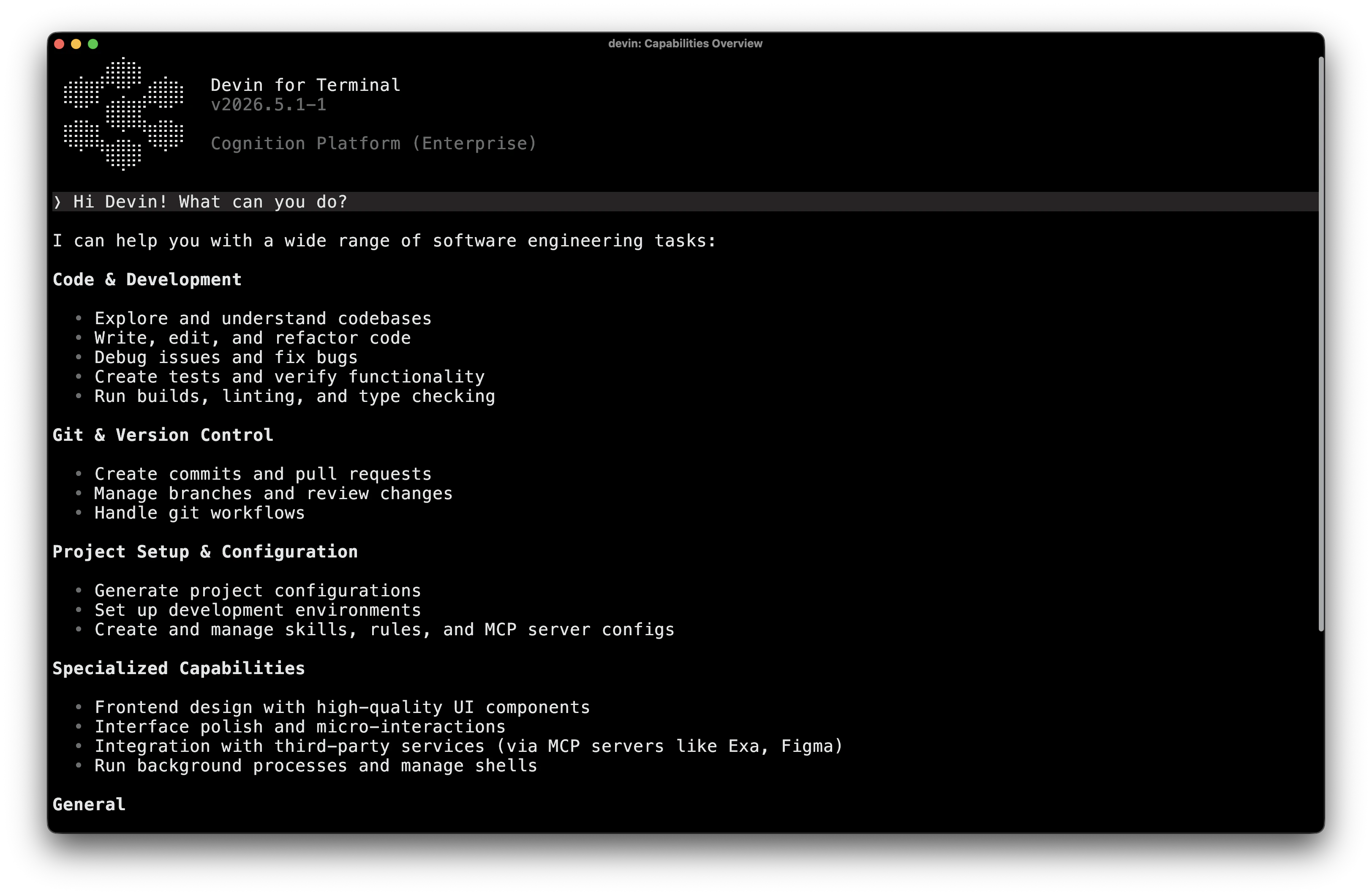
> 通过 Devin CLI 在 2 分钟内快速上手;它是一个与 Devin Cloud 深度集成的本地命令行代码 Agent。
```bash theme={null}
curl -fsSL https://cli.devin.ai/install.sh | bash
```
在 macOS 上,可使用 [Homebrew](https://brew.sh) 安装 Devin CLI:
```bash theme={null}
brew install --cask devin-cli
```
如需稍后升级到最新版本,请运行:
```bash theme={null}
brew upgrade --cask devin-cli
```
下载并运行安装程序:
* [x86\_64 (大多数 Windows 电脑)](https://static.devin.ai/cli/devin-updater-x86_64-pc-windows.exe)
* [ARM64 (Windows on ARM)](https://static.devin.ai/cli/devin-updater-aarch64-pc-windows.exe)
或者,打开 **PowerShell** 并运行:
```powershell theme={null}
irm https://static.devin.ai/cli/setup.ps1 | iex
```
`irm` 和 `iex` 是 PowerShell 命令。请勿在 Git Bash 或 CMD 中运行——否则会因“command not found”而失败。安装时只能使用 PowerShell。
安装完成后,你可以在 **PowerShell**、**Windows Terminal** 或 **Git Bash** 中使用 Devin CLI。
**Devin Desktop** 已内置 Devin CLI。此安装方式适用于 **Legacy Windsurf Enterprise** 和 **Devin Enterprise** 套餐。
\*\*Admin 设置:\*\*对于随 Devin Desktop 捆绑提供的安装方式,Admin 必须先在 Devin CLI 团队设置中打开 **Show "Install Devin CLI" in the Devin Desktop Command Palette**,以启用该安装选项。
**用户安装:**
1. 打开 Devin Desktop
2. 使用 Cmd+Shift+P 打开命令面板
(macOS) 或 Ctrl+Shift+P
(Windows/Linux)
3. 搜索并运行 **Install Devin CLI**
这会将 `devin` 可执行文件添加到你的 PATH 中,这样你就可以在任何终端中使用它。
就这么简单!重启终端后,进入项目目录并输入 `devin`,即可激活 Devin CLI。你也可以尝试用提示预加载会话,执行自动化任务:
```bash theme={null}
devin -- check out this code and suggest a feasible, helpful feature
```
现在可以开始了。想了解必备用法,请参阅 [必备命令](/zh/cli/essential-commands)。
## 下一步做什么?
Devin CLI 可以实现新功能、修复 bug、进行代码审查、回答问题、自动执行任务等。
必须掌握的命令和斜杠命令
选择适合当前任务的模型
连接 MCP 服务器和技能
查看所有命令和标志
***
## Devin CLI 与 Devin
Devin CLI 和 [Devin](/zh/get-started/devin-intro) 是两个独立的工具,分别适用于不同的工作流程。
**Devin CLI** 是一款本地编码 Agent,直接在你的终端中运行。它可与本地文件和环境配合使用,在你编写代码时提供快速、交互式的协助。
**Devin** 是我们基于云的 AI 软件工程师,运行在虚拟机中。它包含 Playbooks、Secrets、Knowledge 等功能,以及 Devin CLI 尚不具备的其他能力。
Devin CLI 目前还不支持你 Devin 账户中的 Knowledge、Playbooks 或 Secrets。我们正在积极为这些功能逐步添加支持,并计划很快推出。