

Get started
Installation
- Go to Settings > Connections > Slack
- On the Integrate Devin with Slack card, click Connect
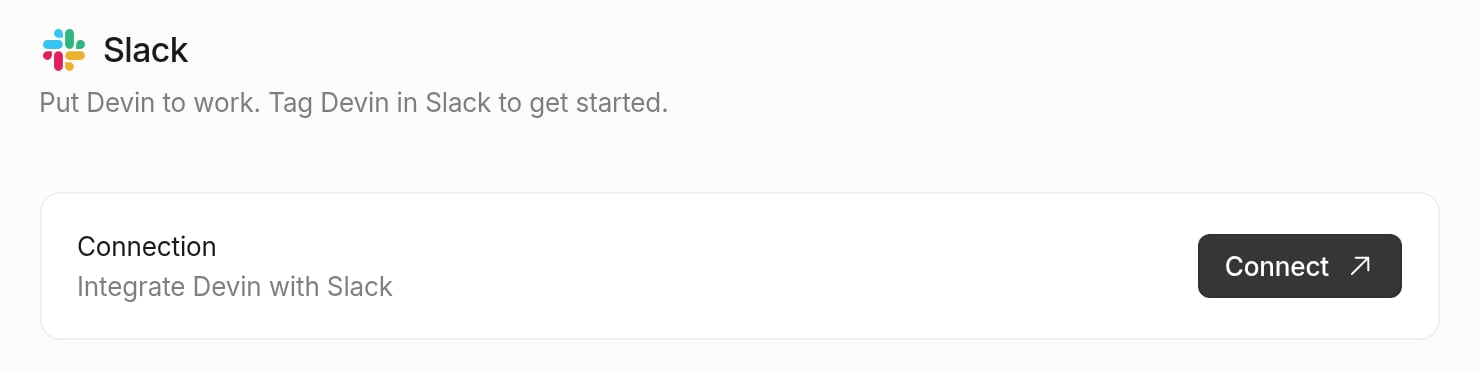
- You’ll be prompted to install the Devin app for Slack in your workspace
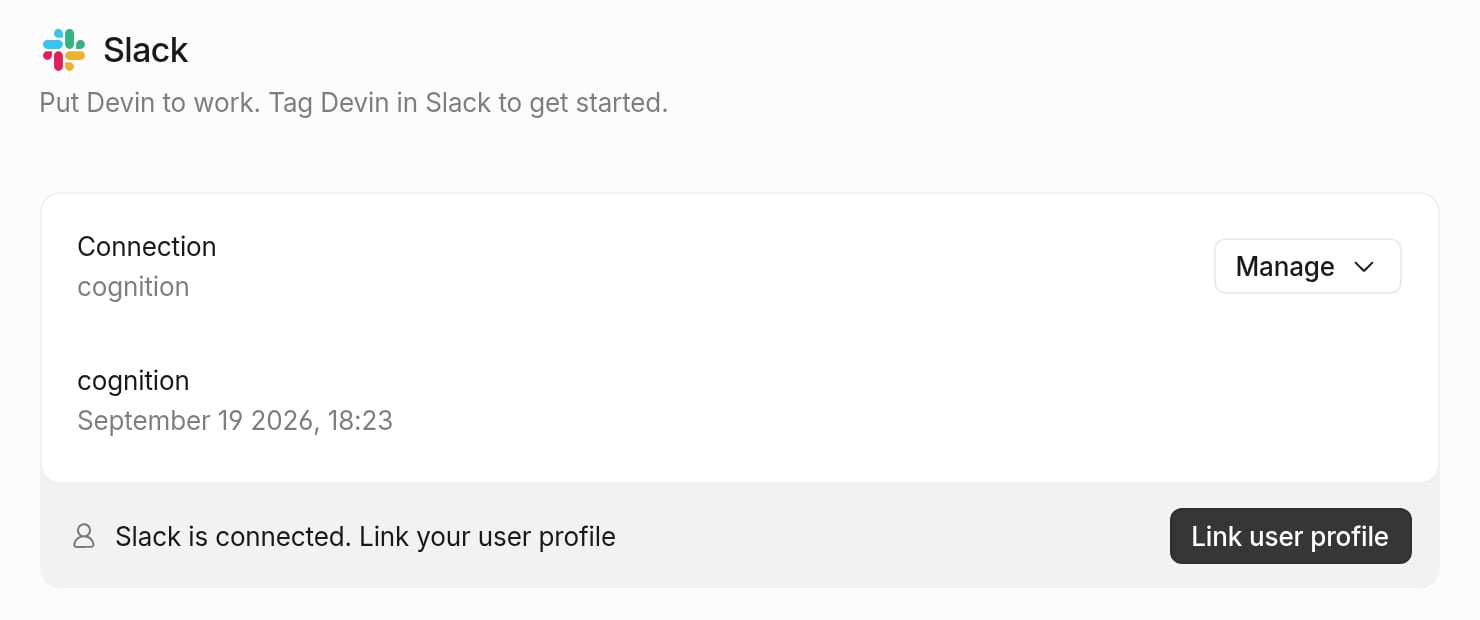
- Back on the Slack settings page, the connected workspace shows a “Slack is connected. Link your user profile” banner — click Link user profile. Every user in your organization needs to complete this step once to use Devin from Slack.
- Tag @Devin in Slack to start a session
Note: If your user account is not properly connecting, ensure that your Slack email is the same as your email in https://app.devin.ai/settings. If not, please authenticate the correct email on Slack.
How to use Devin from Slack
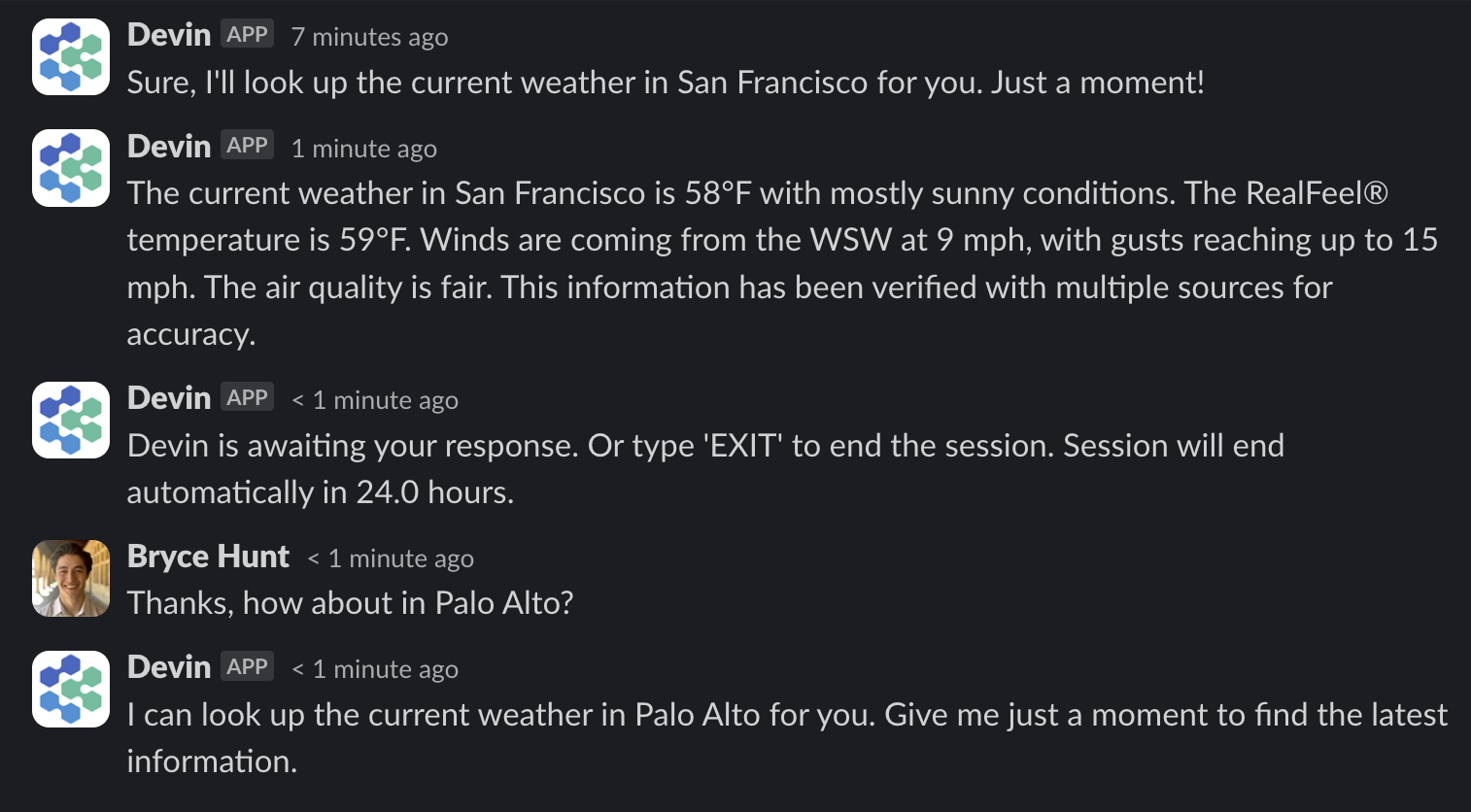
Once you’ve installed the Devin integration for Slack, simply trigger Devin with @Devin in any channel. You may include attachments to your message.
Inline Slack Keywords & Functions
Apart from
!ask, bang commands (!fast, !lite, !ultra, !fusion, !swe, !swe2, !normal, !new, !channel, !windows, !mac, !outpost, !dana, !data) are recognized anywhere in your message, not just at the beginning — @Devin fix the bug !ultra !new works the same as @Devin !ultra !new fix the bug. They can be stacked in any order, and the keywords themselves are stripped from the prompt Devin receives. A bang command inside an inline or fenced code span is treated as literal text. Sending a mode keyword in an active Devin thread switches that session’s mode mid-session.Slash commands
Run either command with no arguments (or with
help) to get usage instructions back privately.
Message shortcuts
Right-click (or use the ⋮ overflow menu on) any Slack message to act on it without retyping it:- Ask Devin about this — uses the message as the question for a quick codebase answer, same as
/ask-devin. - Create a new session — opens a modal pre-filled with the message text, where you pick the channel to post the session in, optionally attach a playbook, and edit the prompt before submitting.
Sync sessions with Slack threads
Sessions can sync bidirectionally with a Slack thread: messages you send in the webapp appear in the thread, and replies in the thread reach Devin. This means you can start a session anywhere and keep your team in the loop.- Use the Slack toggle in the session composer to turn sync on or off for that session. The icon is colored when synced and greyed out when not.
- The first time you sync to a channel, Devin offers to make it your default so new sessions sync there automatically.
- Send
unsync(or!unsync) in a synced thread to immediately stop syncing that session. Toggle sync back on in the webapp to resume.
- Mentioning
@Devinin the thread of an archived session unarchives it so you can continue the conversation. - When Devin suggests an environment configuration change, the Slack message includes the proposed diff and an Apply button so you can accept it without leaving Slack.
Code channels
A code channel is a Slack channel dedicated to a single Devin session. Instead of following the run in a thread, you get a channel whose name tracks the session title, a status chip showing whether Devin is working / blocked / done, a link back to the session in the webapp, chips and tabs for the pull requests it opens, and a live worklog of the thoughts and tool calls behind each message. Every message you send in the channel goes to that session — no@Devin mention needed.
There are two ways a session ends up in a code channel:
- Start it there with
!new.@Devin !new <task>creates the channel and runs the session in it from the beginning. A!newfrom inside a code channel spawns a separate sibling channel for the new session. - Let Devin move the conversation. When a thread conversation turns into real work, Devin can move the session into a code channel itself. The original thread keeps its history and gets a “This session moved to #channel” notice; the session continues in the new channel, and further replies in the old thread no longer reach it. Devin won’t move a session whose Slack sync you turned off (see Sync sessions with Slack threads).
Code channels are enabled for every Devin organization. They also depend on Slack’s own Code Channels feature, which Slack is rolling out to workspaces gradually — if you don’t see them yet in your workspace, that rollout is still in progress and nothing needs to be enabled on Devin’s side.
Automations triggered from Slack
Automations can be triggered by Slack activity — for example a reaction added to a message, or Devin monitoring a channel and jumping in when it can help — and can post run results back to a channel you designate. See the Automations guide for setup.Dedicated Devin channel
Set up a #devin-runs channel (or similar) to keep all Devin conversations in one place. This helps your team collaborate on Devin runs together and draw inspiration for different use cases from each other.
How to Rename Devin
You may change Devin’s name in your Slack workspace by going to your Slack Workspace Admin panel -> Configure apps -> Installed Apps -> Devin. Then click on App Details, and go to the Configuration tab of that page. If you scroll down you will find a section called ‘Bot User’ where you may change Devin’s name.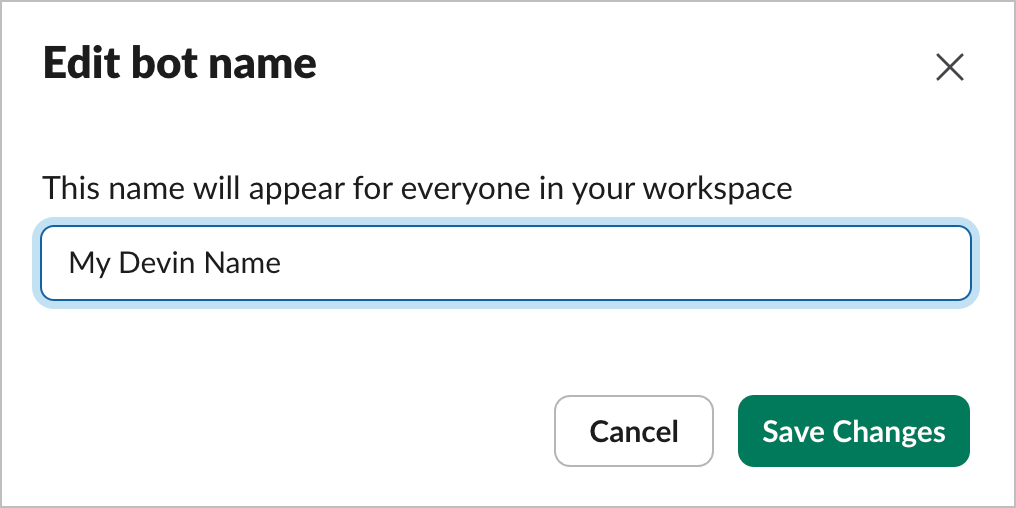
Pricing
If you don’t yet have a Devin account, you can learn more about pricing and plans here.The AI assistant sidebar experience (app container) requires a paid Slack plan. All other Devin features — @mentions in channels and threads,
/ask-devin, /dana, and message shortcuts — work on any Slack plan, including free workspaces.Privacy
Our privacy policy is available here.Permissions Details
We occasionally add scopes as Devin gains Slack capabilities. If your workspace’s install is missing a required scope, Devin prompts an admin to reinstall the app from Settings > Connections > Slack.